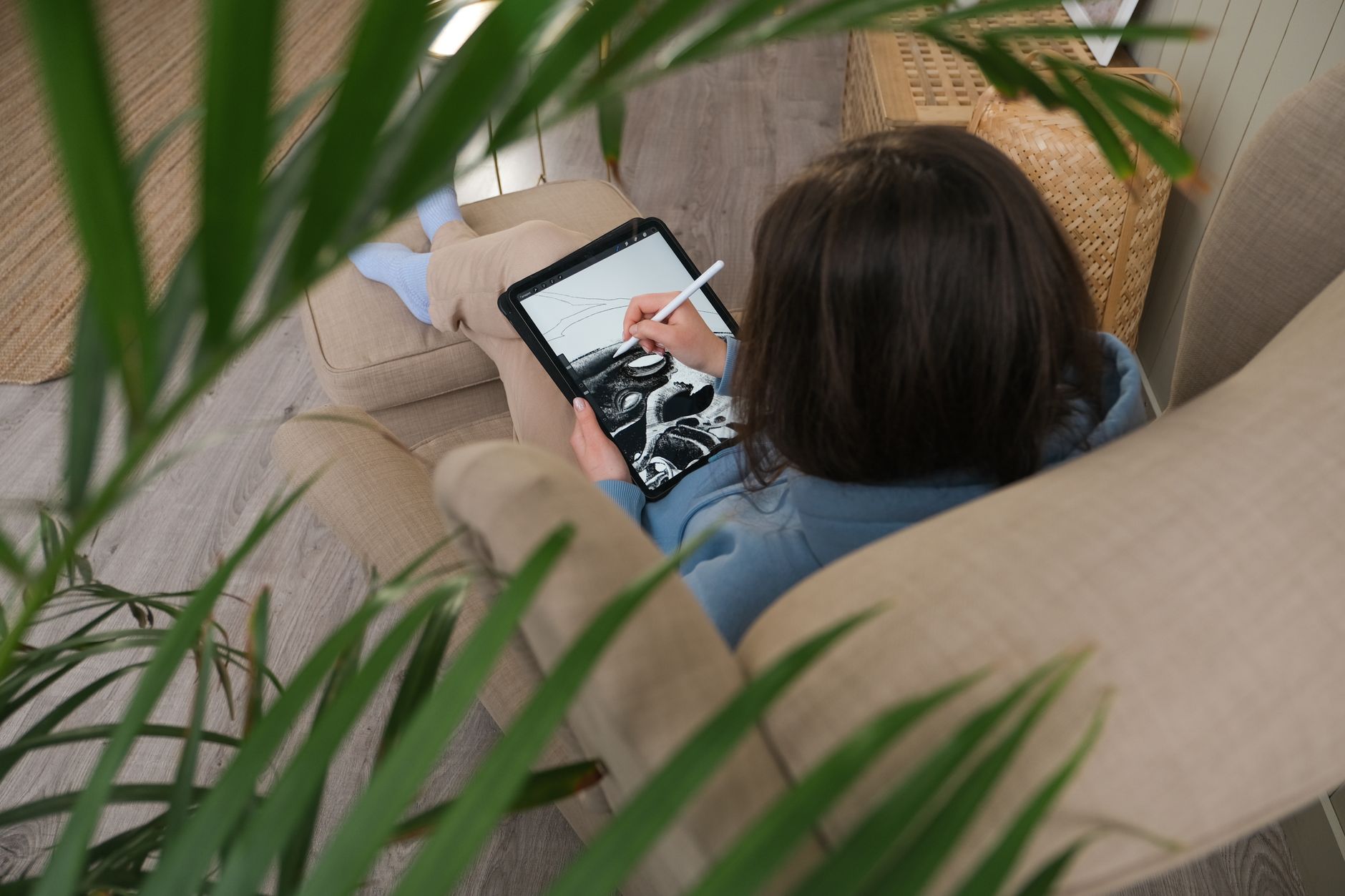
Unleash Creativity: Best Drawing Tablets for Artists
July 16, 2026 15 min read 3,044 words
Transform your artistic vision into digital masterpieces with our expert guide to the top drawing tablets available today.
Find Your Perfect Tablet
Understanding Different Types of Drawing Tablets for Artists
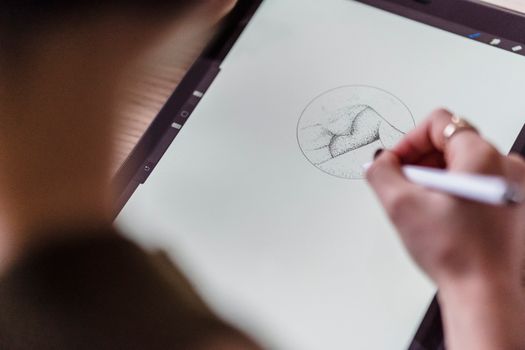 Photo: Michael Burrows / Pexels
Navigating the world of digital art can feel overwhelming, especially when choosing the right tools. For artists, the drawing tablet is the cornerstone of their digital studio. But what exactly are the 'best drawing tablets for artists,' and how do you differentiate between the myriad options available? Fundamentally, drawing tablets fall into three main categories: pen tablets (also known as graphics tablets), pen display tablets, and standalone tablets. Each offers a distinct experience tailored to different artistic needs and budgets.
Pen tablets are the most traditional and often the most affordable entry point into digital art. These are flat, opaque surfaces that connect to your computer. You draw on the tablet with a stylus, and your artwork appears on your computer monitor. The learning curve involves getting used to drawing in one place while looking at another, a hand-eye coordination challenge that many artists quickly overcome. Their advantages include portability, durability, and a lower price point. They are excellent for illustrators, graphic designers, and anyone who needs precise control without the need for a screen on the device itself. Brands like Wacom Intuos and Huion H610Pro V2 are popular choices in this category, offering excellent pressure sensitivity and customizable buttons, which are crucial for efficient workflow. The absence of a screen on the tablet means you're not paying for display technology, making them a cost-effective solution for artists on a budget or those who already have a high-quality monitor. They are also less prone to glare and reflections, as you're not directly looking at the drawing surface. For many professional artists, a high-end pen tablet combined with a large, color-accurate monitor remains the preferred setup for intricate work and ergonomic comfort. They are also incredibly versatile, compatible with virtually all major art software, from Adobe Photoshop to Clip Studio Paint, making them a flexible choice for diverse artistic practices.
Explore more about digital art tools here.
Pen display tablets, on the other hand, offer a more intuitive and direct drawing experience. These devices feature a screen that you draw directly onto, mimicking the feel of traditional pen and paper. This 'what you see is what you draw' approach significantly reduces the learning curve and can feel much more natural for artists transitioning from traditional mediums. Wacom Cintiq, Huion Kamvas, and XP-Pen Artist series are prime examples of pen display tablets. They come in various sizes, from compact 13-inch models perfect for portable use to large 32-inch displays for professional studios. The key features to look for in a pen display include screen resolution (Full HD, 2K, 4K), color accuracy (sRGB, Adobe RGB, DCI-P3 coverage), and parallax (the perceived gap between the pen tip and the cursor). Higher resolution and better color accuracy are vital for professional artists who require precise detail and true-to-life color representation. Minimal parallax makes the drawing experience feel more natural and responsive. While generally more expensive than pen tablets, the direct drawing experience often justifies the investment for many artists, especially those involved in digital painting, concept art, or animation. They often include adjustable stands, allowing artists to find the most comfortable drawing angle, crucial for long creative sessions. The tactile feedback and direct visual connection can significantly enhance an artist's workflow and enjoyment, making them a popular choice for those serious about digital art. The integration of a display means fewer cables and a more streamlined setup, reducing clutter in the workspace.
Standalone Drawing Tablets: The All-in-One Solution
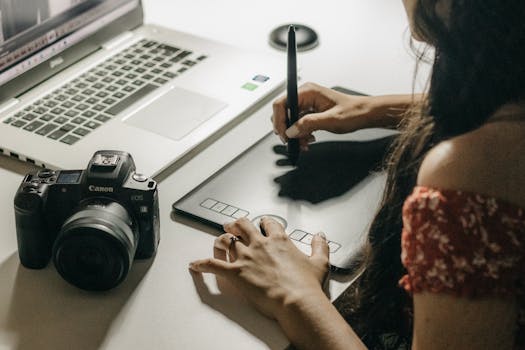 Photo: Kawê Rodrigues / Pexels
The third category, standalone drawing tablets, represents the pinnacle of portability and self-sufficiency in digital art. Unlike pen tablets and pen displays, these devices do not need to be connected to a computer to function. They are essentially powerful tablets with integrated screens and operating systems, designed specifically for creative tasks. The Apple iPad Pro with Apple Pencil and the Microsoft Surface Pro are the most prominent examples in this category, though Android-based options like the Samsung Galaxy Tab S series also offer compelling features. The primary advantage of standalone tablets is their unparalleled portability. Artists can create anywhere – on a commute, in a coffee shop, or outdoors – without being tethered to a desktop setup. This freedom opens up new possibilities for creative expression and spontaneous art-making.
Standalone tablets boast high-resolution screens, excellent color accuracy, and powerful processors capable of running full-featured art applications. For instance, the iPad Pro runs Procreate, a highly acclaimed drawing and painting app, and can also handle more robust software like Adobe Fresco and Affinity Photo. The Apple Pencil, with its industry-leading pressure sensitivity and tilt recognition, offers an incredibly natural drawing experience. Similarly, the Microsoft Surface Pro, running Windows, can run virtually any desktop art software, including the full Adobe Creative Suite, making it a versatile choice for professionals who need desktop-level performance in a portable form factor. The key considerations for standalone tablets include battery life, storage capacity, and the ecosystem of available apps. A long battery life is crucial for on-the-go creativity, while ample storage ensures you can save numerous projects without worry. The app ecosystem dictates the range and quality of creative tools at your disposal. While generally the most expensive option, the convenience, power, and direct drawing experience offered by standalone tablets make them an invaluable tool for many artists, particularly those who prioritize mobility and a seamless, integrated workflow. They are often chosen by illustrators, animators, and concept artists who need to work flexibly across various locations. The ability to switch between drawing, editing, and even light productivity tasks on a single device further enhances their appeal. Furthermore, many standalone tablets offer robust connectivity options, including Wi-Fi and cellular, allowing artists to share their work instantly or access cloud-based resources from anywhere. The integration of high-quality cameras also means artists can easily capture reference photos directly on their device, streamlining their creative process. The tactile feel of drawing directly on a responsive screen, combined with the power to run professional-grade software, positions standalone tablets as a premium choice for serious digital artists seeking the ultimate in creative freedom and performance. These devices are not just drawing tools; they are complete digital studios in a compact form, empowering artists to push the boundaries of their creativity without geographical constraints.
Key Features to Consider When Choosing Your Digital Canvas
 Photo: Gu Ko / Pexels
When selecting among the best drawing tablets for artists, a deep dive into specific features is essential to ensure your chosen device aligns perfectly with your artistic demands. Beyond the type of tablet, several technical specifications significantly impact your drawing experience and overall productivity. Understanding these will help you make an informed decision, whether you're a budding enthusiast or a seasoned professional. One of the most critical features is pressure sensitivity. Measured in levels (e.g., 2048, 4096, 8192), this determines how finely the tablet can detect variations in pressure applied by your stylus. Higher pressure sensitivity allows for a wider range of line weights and opacity, mimicking the nuanced control of traditional art mediums. For instance, a light touch might create a faint line, while pressing harder produces a bolder, darker stroke. This responsiveness is vital for expressive drawing, painting, and intricate detailing. Most modern tablets offer at least 4096 levels, with professional-grade devices reaching 8192 or more, providing exceptional control over your brushwork.
Another crucial aspect, especially for pen display and standalone tablets, is screen resolution and color accuracy. A higher resolution (e.g., Full HD, 2K, 4K) means more pixels per inch, resulting in sharper images and finer details, which is indispensable for artists working on high-resolution illustrations or detailed concept art. Color accuracy, often expressed as a percentage of sRGB, Adobe RGB, or DCI-P3 color spaces, ensures that the colors you see on your screen are true to life and will translate accurately when printed or viewed on other devices. A display with 99% sRGB coverage is generally good for most artists, while professionals in print or animation might seek wider gamuts like Adobe RGB or DCI-P3 for more vibrant and precise color reproduction. Parallax, the perceived gap between the pen tip and the cursor on screen, should also be as minimal as possible for a natural drawing feel. Advanced display technologies, such as laminated screens, help reduce parallax significantly by bringing the display closer to the glass surface.
Connectivity options are also paramount. Most pen tablets connect via USB-A or USB-C, while pen displays often require HDMI or DisplayPort in addition to USB for data. Standalone tablets typically rely on Wi-Fi and Bluetooth, with some offering cellular connectivity. Ensure your computer has the necessary ports or consider adapters. Customizable express keys (or shortcut buttons) on the tablet or stylus can dramatically speed up your workflow by allowing you to map frequently used commands (e.g., undo, zoom, brush size) directly to a button. This reduces the need to constantly switch between your pen and keyboard, keeping your focus on the art. Finally, consider the build quality and ergonomics. A comfortable stylus that fits well in your hand and a tablet with a durable, scratch-resistant surface will enhance your long-term drawing experience. Adjustable stands for pen displays are also a significant ergonomic benefit, allowing you to find the perfect angle for hours of comfortable creation.
Learn more about optimizing your digital art setup.
Tips for Maximizing Your Drawing Tablet Experience
 Photo: Michaela St / Pexels
Acquiring one of the best drawing tablets for artists is just the first step; truly mastering it involves understanding how to optimize your setup and workflow. Here are some essential tips to help you get the most out of your digital canvas:
* **Install and Update Drivers Regularly:** This is perhaps the most crucial tip. Tablet drivers are the software that allows your computer and tablet to communicate effectively. Outdated drivers can lead to issues like lag, incorrect pressure sensitivity, or non-functional express keys. Always download the latest drivers directly from the manufacturer's website and update them periodically. This ensures your tablet performs at its peak and is compatible with the newest operating system updates and art software versions.
* **Calibrate Your Pen and Screen:** For pen display and standalone tablets, screen calibration is vital for accurate color representation. Use a hardware calibrator if possible, or your operating system's built-in tools. For all tablet types, calibrate your pen's pressure sensitivity within the tablet's settings and your art software. This allows you to customize how the tablet responds to your touch, matching your unique drawing style. Experiment with different pressure curves until it feels natural.
* **Customize Express Keys and Pen Buttons:** Most drawing tablets come with programmable buttons on the tablet itself (express keys) and on the stylus. Take advantage of these! Map frequently used shortcuts like undo, redo, zoom in/out, brush size, or specific tool selections to these buttons. This significantly reduces reliance on your keyboard, streamlining your workflow and keeping your focus on the drawing surface. The more you customize, the more efficient your creative process becomes.
* **Maintain Proper Ergonomics:** Digital art sessions can be long, so good ergonomics are essential to prevent strain and injury. Ensure your drawing tablet is at a comfortable height and angle. If you have a pen display, use an adjustable stand. Keep your wrist straight and avoid gripping the pen too tightly. Take regular breaks to stretch and rest your eyes. A comfortable setup contributes to sustained creativity and prevents fatigue.
* **Explore Different Art Software:** While you might have a preferred art program, don't be afraid to experiment. Different software excels at different tasks. For example, Procreate is fantastic for painting on iPad, Clip Studio Paint offers robust comic and manga tools, and Adobe Photoshop remains an industry standard for image manipulation and digital painting. Trying various programs can unlock new techniques and expand your artistic capabilities.
* **Protect Your Screen (for Pen Displays/Standalone Tablets):** Invest in a good screen protector, especially if your tablet doesn't come with a pre-applied one. This protects against scratches and can even provide a more paper-like texture for a better drawing feel. Also, keep your screen clean with a microfiber cloth to ensure optimal visibility and prevent smudges from interfering with your work.
* **Practice Hand-Eye Coordination (for Pen Tablets):** If you're using a pen tablet without a screen, consistent practice is key to developing hand-eye coordination. Start with simple exercises, tracing lines, and shapes, and gradually move to more complex drawings. Your brain will adapt surprisingly quickly, and soon, drawing on the tablet while looking at your monitor will feel second nature.